 Fast delivery across SA · support@techniworld.com

3 November 2026 · Techniworld
Keep, upgrade, or replace? Part 2: Making a practical laptop decision
In Part 1, we looked beyond a laptop’s age to consider its condition, performance and software support. The next question is whether spending money on the existing laptop will address its limitations, or whether replacement would be more useful and economical.
Read Part 1: How long can a laptop remain useful? Looking beyond its age →
A slow laptop doesn’t always need new parts. Background applications, limited free storage, or software problems can affect performance.
Before spending money, see what happens during your typical work on the laptop.
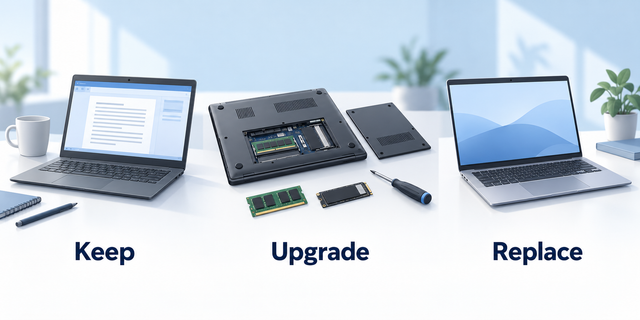
RAM is the working memory space used by running applications. If your laptop struggles when several programs or browser tabs are open, additional memory may help, provided a shortage of memory is contributing to the problem.
More RAM will not resolve every limitation. A resource demanding application may also need a faster processor or more capable graphics than what your laptop has.
A worn battery, faulty keyboard, or a damaged charging connection doesn’t automatically mean the whole laptop must be replaced.
First identify the limitation
Before spending money, see what happens during your typical work on the laptop.
Windows Task Manager can show which applications use the processor, memory, and storage. Look for a recurring pattern during the slowdown period rather than relying on only one high usage reading.
When more memory may help
More RAM will not resolve every limitation. A resource demanding application may also need a faster processor or more capable graphics than what your laptop has.
Check your exact laptop model. Some have replaceable memory modules while others have memory soldered to the motherboard.
When a storage upgrade makes sense
Replacing a mechanical hard drive with a compatible SSD (Solid State drive) improves responsiveness and shortens program and file loading times. If the laptop already has an SSD, a larger drive mainly provides more space for more files or programs. It will not necessarily make tasks noticeably faster. Check the supported drive type and size, and back up your files before any replacement.
When a repair may be worthwhile
A repair may make sense when the rest of the computer is sound and still meets your needs. Obtain a quotation that includes parts and labour and consider the availability and warranty of replacement parts.
When replacement becomes the better option
Replacement should be considered when the laptop cannot comfortably handle essential work, has several developing faults, or cannot run software that still receives security updates.
Compare the cost of repairs and upgrades with a replacement laptop that meets your requirements. Include any additional memory, storage or accessories needed on the replacement too.
There isn’t a specific laptop age that makes the decision obvious for everyone. The question is whether the proposed spending will give you a reliable computer suited to the type of work you do.
A worthwhile upgrade solves a problem that you’re able to identify, while a worthwhile replacement provides new capabilities or reliability that your existing laptop can no longer provide.